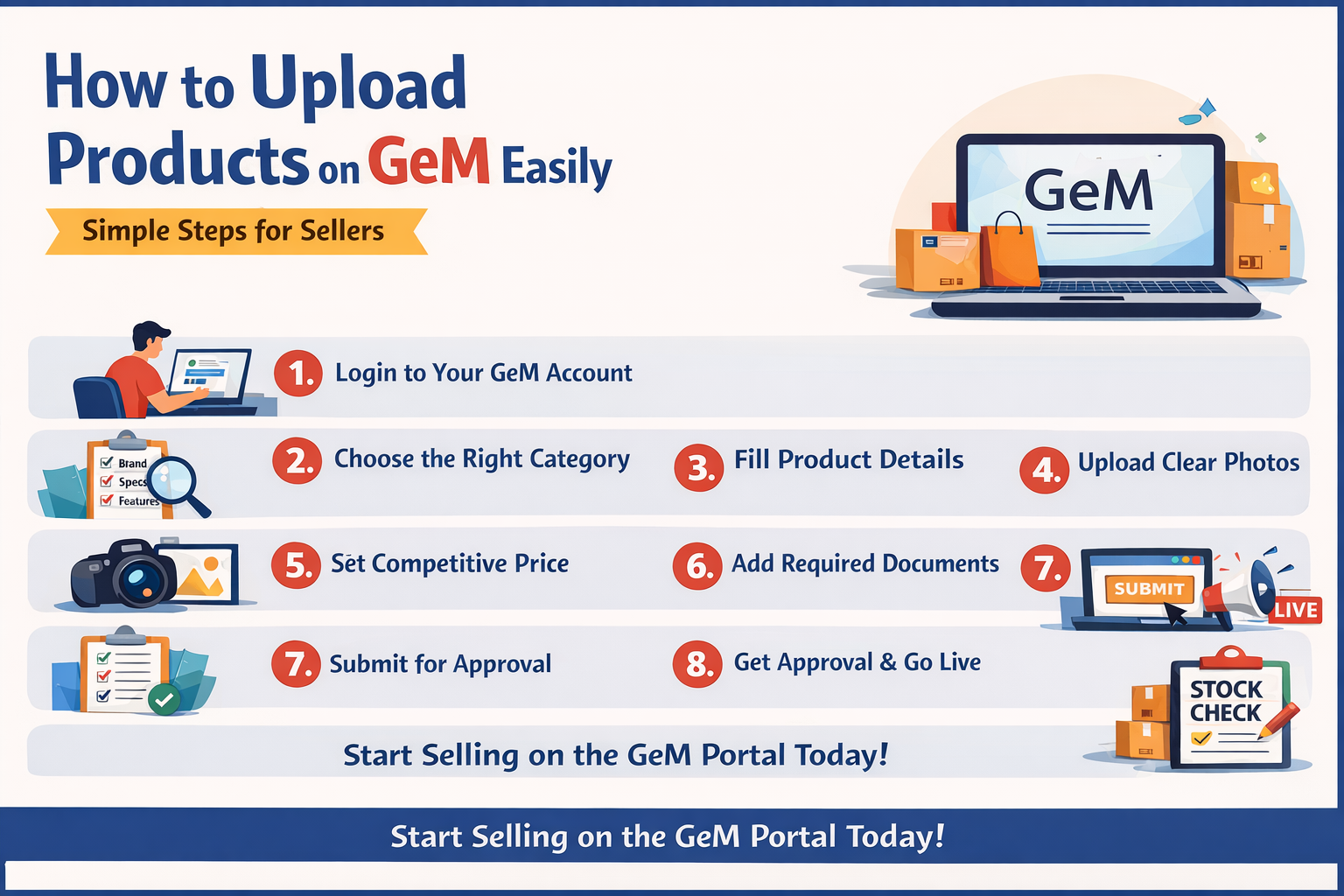
Uploading products on the Government e-Marketplace (GeM) looks difficult, but the process becomes very easy once you understand the steps. When your products are uploaded correctly, buyers can see them, compare them, and place orders directly. This blog will guide you in simple English so you can upload your products without any confusion.
1. Log in to Your GeM Seller Account
First, go to the official website gem.gov.in and log in using your username and password. After logging in, you will see your Seller Dashboard. This is the main page where all your activities are shown. Make sure your profile is complete before uploading any product.
2. Check If Your Product Category Exists
Before uploading, you must check if your product category already exists in GeM.
For this:
-
Go to Products → Add New Offering
-
Search for your product name
If your product category is available, you can select it and move ahead. If not, you can request a new category creation.
3. Select the Right Category
Choosing the correct category is very important.
For example:
-
If you are selling a laptop, choose Laptops
-
If you are selling office chairs, choose Office Furniture – Chair
Correct categories help buyers find your product easily. Wrong categories may lead to rejection.
4. Fill All Product Specifications
After selecting the category, you will see a form with many specifications.
These can include:
-
Brand name
-
Model number
-
Size
-
Color
-
Material
-
Features
Fill all mandatory fields carefully. The more accurate your information, the better your product looks to buyers.
5. Upload Good Images
Images play a big role.
Follow these tips:
-
Use clear photos
-
Use a white or clean background
-
Show the full product
-
Add close-up photos if needed
Good images increase the chances of your product getting selected.
6. Set Your Price Smartly
In GeM, buyers compare prices.
So:
-
Check the market price
-
Check competitor prices on GeM
-
Keep a competitive price to attract buyers
Do not keep prices too high; this may reduce your chances of getting orders.
7. Add Important Documents
Some products need supporting documents like:
-
Warranty details
-
Product brochure
-
Safety certificates
-
Test reports
Upload all necessary documents so your product does not get rejected.
8. Submit the Product for Approval
Once all details are filled, click on Submit.
GeM will review your product.
If everything is correct, your product will be approved within a few days. If something is wrong, they will send a remark, and you can make corrections.
9. Check Visibility and Stock
After approval:
-
Check whether your product is visible to buyers
-
Add stock quantity
-
Update price if necessary
Keep your catalog up to date so buyers always see correct information.
Conclusion
Uploading products on GeM is easy if you follow each step carefully. The key is to give accurate details, clear photos, and a good price. Once your product is live, you can start getting orders from government buyers across India. With regular updates and quality service, your business can grow fast on GeM.